 Jun 26, 2026 - 0
Minutes read
Jun 26, 2026 - 0
Minutes read
How to Edit a PDF File: Simple Methods for Text, Images, and Pages
How to Edit a PDF File: Simple Methods for Text, Images, and Pages

Quick answer: You can edit a PDF file using free online tools, built-in apps on Windows and Mac, or mobile editors. The easiest way is to upload your file to a trusted online editor, make changes to text, images, or pages, and download the updated version—no special software needed.
You finally open that important PDF, ready to fix one small typo—and then you realize you can't change a single word. Frustrating, right? PDFs are designed to lock formatting in place, which is great for sharing but a headache when you need to make quick edits. Whether it's a contract, resume, or scanned form, that "read-only" feeling can leave you stuck at the worst possible moment.
The good news is that editing a PDF is much easier than most people think. In this guide, you'll learn simple, safe methods to edit text, images, and pages—online, on your computer, or right from your phone. We'll also share the best tools and a few smart things to check before you start, so your file stays clean, secure, and professional.
Why You May Need to Edit a PDF File
PDFs show up in almost every part of daily life, from job applications to tax documents. Sooner or later, you'll need to change something inside one. Knowing why people edit PDFs helps you choose the right method for your situation.
Here are the most common reasons:
- Fixing mistakes: A typo in a resume or a wrong date in a contract needs a quick correction.
- Filling out forms: Many official forms arrive as PDFs that require your details, signature, or checkboxes.
- Updating information: Prices, addresses, or names may change after a document is created.
- Adding or removing pages: You might need to delete a blank page or merge two files into one.
- Replacing images: Logos, photos, or charts sometimes need a refresh.
- Signing documents: Digital signatures save time and skip the print-sign-scan routine.
Each of these tasks calls for slightly different tools. A quick text fix needs only a basic editor, while rearranging pages or swapping images may require something more advanced.
How to Edit a PDF File Online
Editing a PDF online is the fastest option when you don't want to install anything. Most online editors work directly in your browser, so you can make changes from any device with an internet connection.
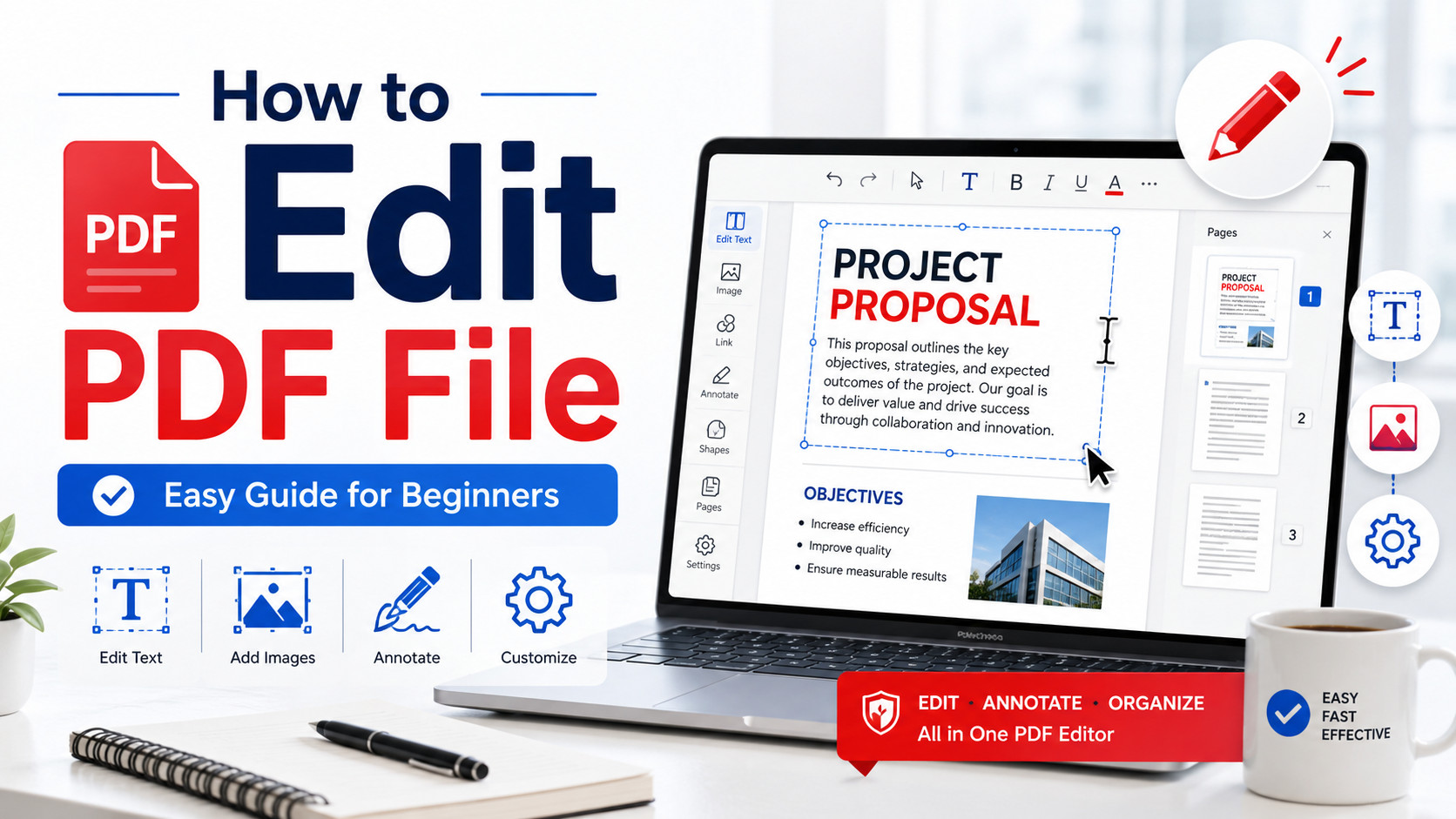
Here's a simple step-by-step process that works with most online tools:
- Choose a trusted online PDF editor. Popular options include Adobe Acrobat online, Smallpdf, and iLovePDF.
- Upload your PDF file. Drag and drop the file or select it from your device.
- Select the edit option. Look for tools labeled "Edit," "Text," "Image," or "Pages."
- Make your changes. Click on the text to retype it, add new images, or rearrange pages as needed.
- Download the updated file. Save the edited PDF back to your device once you're happy with it.
Online editing is best for quick, simple tasks—correcting a sentence, adding a signature, or merging a few pages. For heavy edits or highly sensitive documents, a desktop app may give you more control and privacy.
How to Edit a PDF File on Windows, Mac, and Mobile
Your device often has built-in tools that can handle basic PDF edits without any downloads. The right method depends on whether you're using a computer or a phone.
How do I edit a PDF file on Windows?
Windows users have a few solid choices. Microsoft Word can open many PDFs and convert them into editable documents—just open Word, select your PDF, and let it transform the file. You can then edit text freely and save it back as a PDF.
For more control, install a dedicated editor like Adobe Acrobat or a free alternative such as PDF24. These tools let you change text, add images, and reorder pages without breaking the layout.
How do I edit a PDF file on Mac?
Mac comes with Preview, a built-in app that handles many PDF tasks for free. With Preview, you can highlight text, add notes, insert a signature, and rearrange or delete pages.
Preview doesn't allow deep text editing, though. If you need to rewrite paragraphs or replace large sections, download a full editor like Adobe Acrobat or PDF Expert, which are both popular on Mac.
How do I edit a PDF file on my phone?
Mobile editing works well for fast changes on the go. Apps like Adobe Acrobat Reader, Xodo, and Foxit PDF Editor are available on both iPhone and Android.
Download the app, open your PDF, and use the editing tools to adjust text, sign documents, or fill out forms. Mobile apps are perfect for signing a contract or fixing a small error while you're away from your desk.
Best Tools to Edit PDF Files Easily
The right tool depends on how often you edit PDFs and how complex your edits are. Below is a quick comparison of trusted options to help you decide.
- Adobe Acrobat: The industry standard for PDF editing. Choose Adobe if you edit PDFs often and need advanced features like detailed text editing, form creation, and secure signatures. It works on Windows, Mac, and mobile but requires a paid subscription for full features.
- Smallpdf: A clean, web-based tool ideal for quick tasks. Pick Smallpdf if you want a simple interface for editing, compressing, and converting files online. It offers a free tier with limited daily use.
- iLovePDF: Great for managing pages. Use iLovePDF if your main needs are merging, splitting, or reordering pages. It's free for basic tasks and available online and as an app.
- PDF24: A free desktop tool for Windows. Go with PDF24 if you want offline editing without paying anything. It handles text edits, page management, and conversions.
- Preview (Mac): Built into every Mac. Use Preview for light edits like signatures, annotations, and page rearranging at no cost.
- Xodo: A free, cross-platform app. Choose Xodo if you want a reliable mobile editor with annotation and form-filling features.
If you only edit PDFs occasionally, free tools like PDF24, Preview, or Smallpdf will cover most needs. For daily professional work, a paid plan from Adobe Acrobat offers the most reliable results.
Things to Check Before Editing a PDF File
A few quick checks can save you from headaches later. Before you start editing, take a moment to review these points.
- Make a backup copy. Always keep the original file in case an edit goes wrong.
- Check if the PDF is password protected. Some files block editing until you enter a password or remove restrictions.
- Confirm the file isn't a scanned image. Scanned PDFs are pictures of text, so you'll need OCR (optical character recognition) to make them editable.
- Review the file size. Very large files may slow down online editors or hit upload limits.
- Think about privacy. For confidential documents, choose offline tools instead of uploading to a website.
- Match fonts and formatting. When editing text, try to use the same font and size so your changes blend in naturally.
Taking these steps first keeps your document clean and professional. It also helps you avoid common problems like broken layouts or mismatched fonts.
Start Editing Your PDFs With Confidence
Editing a PDF no longer requires expensive software or technical skills. With the right approach, you can fix text, swap images, and rearrange pages in just a few minutes—whether you're on a laptop, a Mac, or your phone.
Start with a free online editor for small tasks, lean on your device's built-in tools for everyday changes, and consider a paid app like Adobe Acrobat if you handle PDFs regularly. Just remember to back up your original file and stay mindful of privacy when working with sensitive documents.
Pick one tool from this guide and try editing a PDF today. Once you see how simple it is, that "read-only" frustration will be a thing of the past.
Frequently Asked Questions
Can I edit a PDF file without converting it?
Yes, you can edit a PDF directly without converting it to another format. Most modern editors—like Adobe Acrobat, Smallpdf, and PDF24—let you click on text, images, or pages and make changes inside the original PDF. This keeps your formatting intact and saves time. For quick fixes, direct editing is almost always the better choice over converting back and forth.
What is the easiest way to edit a PDF file?
The easiest way is to use a free online editor that works in your browser. Simply upload your file, make your changes, and download the result—no installation needed. Tools like Smallpdf and iLovePDF are designed for beginners, with clear buttons for editing text, adding images, and managing pages. This method is perfect when you need a fast, simple edit.
Can I edit text inside a PDF file?
Yes, most PDF editors allow you to change the text directly. Open your file in a tool like Adobe Acrobat or PDF24, click on the text you want to change, and start typing. One helpful tip: match the original font and size so your edits blend in smoothly. Keep in mind that scanned PDFs need OCR before the text becomes editable.
How do I edit a PDF file on my phone?
You can edit a PDF on your phone using a free mobile app. Download an editor like Adobe Acrobat Reader, Xodo, or Foxit from your app store, open the file, and use the built-in tools. These apps let you fix text, sign documents, and fill out forms right from your screen. Mobile editing is ideal for quick changes when you're away from a computer.
Is it safe to edit a PDF file online?
Editing a PDF online is generally safe when you use a reputable tool. Trusted services like Adobe, Smallpdf, and iLovePDF use encryption and delete your files after a short period. For extra peace of mind, avoid uploading highly sensitive documents and use offline software instead. Always check the website's privacy policy before uploading anything important.