 Jul 05, 2026 - 0
Minutes read
Jul 05, 2026 - 0
Minutes read
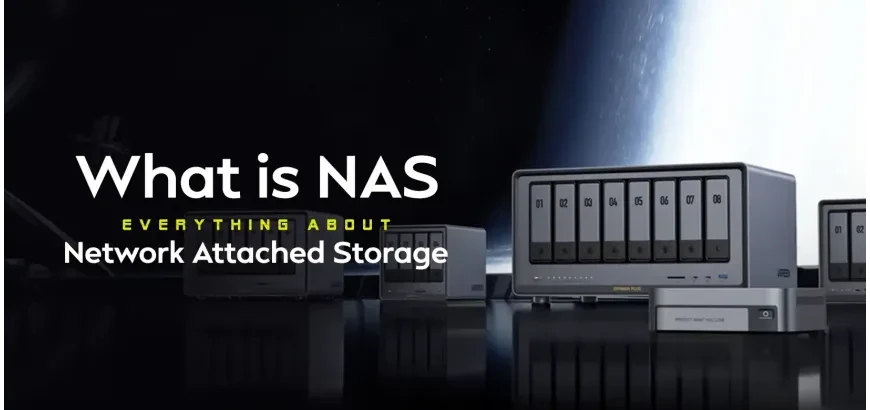
What is NAS: Everything About Network Attached Storage
What Is NAS? A Complete Guide to Network Storage
What Is NAS? A Complete Guide to Network Attached Storage
NAS (Network Attached Storage) is a dedicated storage device connected to your home or business network, allowing multiple users to store, access, and back up files from any device. NAS combines the privacy of local storage with the convenience of cloud-like access—without ongoing subscription fees.
Losing important files is stressful—and if you've ever scrambled to recover a deleted document or panicked over a crashed hard drive, you already know the feeling. As data needs grow at home and in the workplace, finding a storage solution that's reliable, private, and genuinely easy to use has never mattered more.
This guide breaks down exactly what NAS is, how it works, and whether it's the right fit for you. By the end, you'll know how NAS compares to cloud storage and external hard drives, what features to look for, and how to pick the right setup for your needs—no technical background required.
What Is NAS?
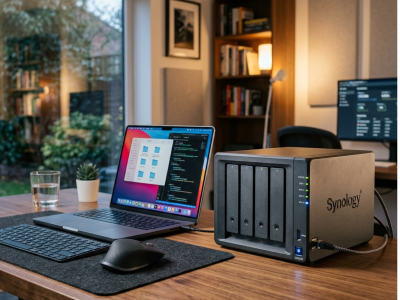
NAS stands for Network Attached Storage. At its core, it's a dedicated storage device that connects directly to your home or office network via an Ethernet cable or Wi-Fi router. Once connected, every device on that network—laptops, smartphones, smart TVs, tablets—can access the stored files instantly.
Think of NAS as a personal cloud server that sits in your home or office. Unlike public cloud services (Google Drive, Dropbox), NAS keeps your data on physical hardware that you own and control. You're not renting space from a third party, and there are no monthly fees eating into your budget.
Popular NAS brands include Synology, QNAP, and Western Digital, each offering devices that range from beginner-friendly two-bay units to enterprise-grade systems with dozens of drive slots.
How Does NAS Work?
A NAS device contains one or more hard drives (or SSDs) housed in an enclosure with its own processor and operating system. When you plug it into your router, it gets a local IP address—just like your laptop or phone—making it a fully networked storage resource.
Here's a simplified breakdown of how data flows:
- You upload a file from your computer to the NAS over your local network.
- The NAS stores it on its internal drives, often using a RAID configuration to duplicate data across multiple drives for protection.
- Any authorized device on the same network can then retrieve that file in seconds.
Most modern NAS devices also support remote access, meaning you can reach your files from anywhere in the world via a secure connection—much like cloud storage, but without handing your data over to a third-party server.
What Are the Benefits of Using NAS for Home and Business?
NAS delivers a different kind of value depending on where it's used, but the core benefits hold across both contexts.
For Home Users
- Centralized media storage: Store your entire photo library, video collection, or music catalog in one place, accessible from every TV, tablet, and phone in the house.
- Automatic backups: Most NAS systems support scheduled backups for all connected devices, so you never have to remember to back up manually.
- One-time cost: Pay once for the hardware and drives. No monthly subscription required.
For Business Users
- Shared team access: Multiple employees can read, edit, and collaborate on the same files without emailing attachments back and forth.
- Data sovereignty: Sensitive business files stay on hardware you control—not on a third-party cloud platform.
- Scalability: Add more drives as your storage needs grow, without migrating to an entirely new system.
NAS vs. External Hard Drive vs. Cloud Storage: What's the Difference?
Each storage option has its strengths. Choosing the right one depends on your priorities.
Feature | NAS | External Hard Drive | Cloud Storage |
|---|---|---|---|
Access from multiple devices | ✅ Yes | ❌ No | ✅ Yes |
Remote access | ✅ Yes (with setup) | ❌ No | ✅ Yes |
Monthly fees | ❌ None | ❌ None | ✅ Ongoing |
Data privacy | ✅ Full control | ✅ Full control | ⚠️ Third-party |
Automatic backup | ✅ Yes | ❌ Manual | ✅ Yes |
Ideal for | Families, teams | Individual users | Light users |
Choose NAS if you need multi-device access, care about data privacy, and want to avoid ongoing cloud fees. Choose an external hard drive for simple, portable personal backups. Choose cloud storage if you're a light user who needs access across devices with minimal setup.
How to Choose the Best NAS: Storage, Speed, Security & Backup Features
Shopping for a NAS device can feel overwhelming. Here's what actually matters.
Storage Capacity
Start by estimating your current storage use, then plan for two to three years of growth. A 2-bay NAS (two drive slots) suits most home users and small offices. Larger teams or media-heavy households may want a 4-bay or 6-bay unit for more capacity and redundancy options.
Processor Speed and RAM
NAS performance depends heavily on its processor and RAM, especially if multiple users access it simultaneously. For basic file storage, a dual-core processor and 1–2GB of RAM is sufficient. For running applications, surveillance cameras, or Plex media servers, aim for a quad-core processor with 4GB or more.
RAID Configuration
RAID (Redundant Array of Independent Disks) determines how your NAS handles drive failures. RAID 1 mirrors data across two drives—if one fails, the other keeps your files intact. This is the most popular configuration for home and small business use. More advanced options like RAID 5 or RAID 6 offer better storage efficiency with additional redundancy for larger setups.
Security Features
Look for NAS devices that support end-to-end encryption, two-factor authentication (2FA), and automatic SSL certificates for remote connections. Synology's DiskStation Manager (DSM) and QNAP's QTS operating systems both offer robust built-in security tools.
Backup Compatibility
The best NAS devices integrate with services like Time Machine (for Mac users), Windows Backup, and third-party backup tools. Some also support cloud sync to services like Backblaze or Amazon S3, giving you an off-site backup layer for added protection.
Is NAS the Right Storage Solution for You?
NAS makes the most sense for people who have outgrown a single hard drive or feel uncomfortable handing their files over to cloud providers. For a family storing years of photos and videos, a home NAS offers peace of mind and immediate access without a monthly bill. For a small business managing sensitive client files, NAS provides the control and security that cloud services simply cannot match.
That said, NAS requires a bit more initial setup than plugging in a USB drive or signing up for Dropbox. If you're comfortable following step-by-step instructions and willing to invest a few hours upfront, the long-term payoff is significant.
Frequently Asked Questions
What does NAS mean?
NAS stands for Network Attached Storage. It refers to a dedicated storage device that connects to your network, allowing multiple devices to access and share files from one central location. Unlike a regular hard drive, NAS is always on and always accessible to authorized users on the network.
Is NAS better than cloud storage?
NAS is better than cloud storage when data privacy and long-term cost savings matter most to you. With NAS, your files stay on hardware you own—no third party can access them, and there are no ongoing subscription fees. However, cloud storage is easier to set up and better suited for users who need access from many locations without any technical configuration.
Can I use NAS for home backup?
Yes, NAS is an excellent home backup solution. Most NAS devices support automatic, scheduled backups for every computer and phone on your network. Synology and QNAP devices, for example, both support Apple Time Machine and Windows Backup natively, making it straightforward to protect all your devices from one central point.
How much storage do I need for a NAS?
A good starting point is to calculate your current total storage use across all devices, then double it. For most households storing photos, videos, and documents, 4TB to 8TB of usable storage is sufficient. If you plan to store 4K video footage, music libraries, or run a small business, consider starting at 10TB or more with room to add drives later.
Is NAS safe for storing important files?
Yes, NAS is safe for storing important files when configured correctly. Using a RAID setup protects against drive failure, while features like encryption and two-factor authentication guard against unauthorized access. For maximum protection, follow the 3-2-1 backup rule: keep three copies of your data, on two different media types, with one copy stored off-site or in the cloud.
